Browser Pages
This document explains the browser-accessible pages available for configuring, scanning, and managing settings on your device. For technical details on the web server itself, see Web Server.
Config Page
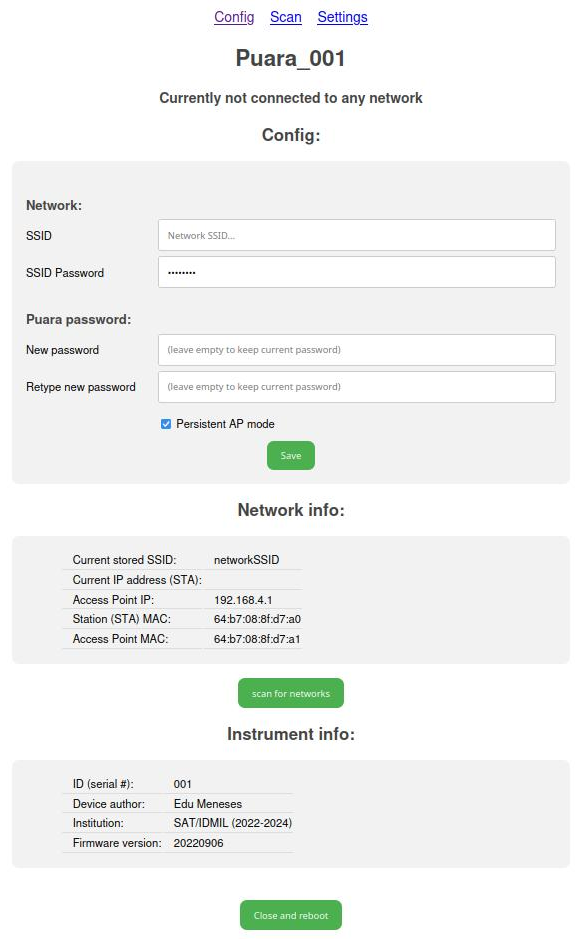
The Config Page is the main page of the web interface, allowing you to manage network and device configuration parameters.
Key Parameters
| Parameter | Description |
|---|---|
| Network SSID | The external WiFi network name you want to connect to. |
| Network Password | The password for the external WiFi network. |
| Puara Password | The password for your device’s own WiFi access point. |
Important Notes
- After making changes, click “Close and Reboot” to restart the device and apply the changes.
- See the config.json file for all available parameters.
config.json
You can modify configuration values directly in the source file, then build and upload the filesystem. The /data/config.json file stores the main configuration of your device:
{
    "device": "Puara",
    "id": 1,
    "author": "Edu Meneses",
    "institution": "SAT/IDMIL (2025)",
    "APpasswd": "mappings",
    "wifiSSID": "SSID",
    "wifiPSK": "AP_PASSWORD",
    "persistentAP": 1
}
| Field | Description |
|---|---|
device | User-defined name for the device. |
id | User-defined device ID (useful when using multiple devices). |
author | Project author name. |
institution | Institution or organization name. |
APpasswd | Password for your device’s WiFi access point. |
wifiSSID | Name of the external WiFi network to connect to. |
wifiPSK | Password for the external WiFi network. |
persistentAP | If 1 (true), the device always creates its own access point. Set to 0 to disable and reduce radio interference. |
Scan Page
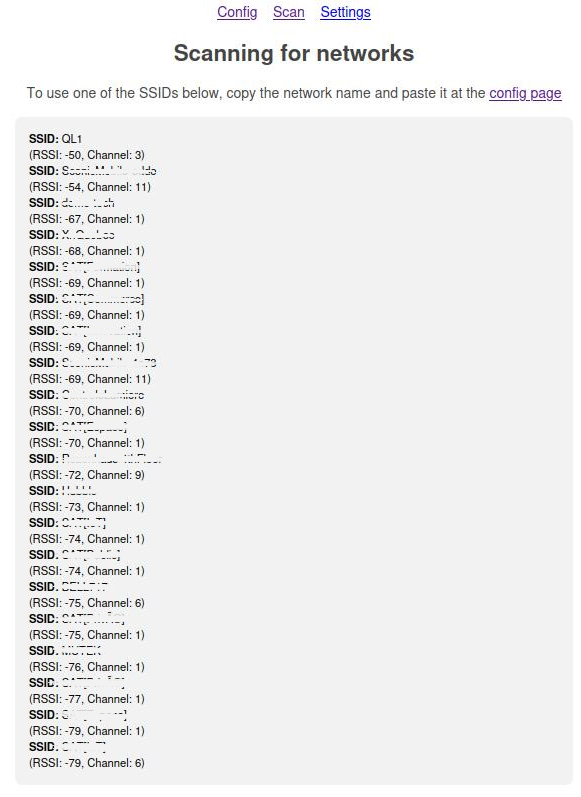
The Scan Page displays WiFi networks detected by your device, helping you identify available networks to connect to.
Features
- View a list of available WiFi networks with signal strength.
- Use this information to select a network for the Config Page.
- After updating the configuration, reboot the device to apply changes.
Settings Page
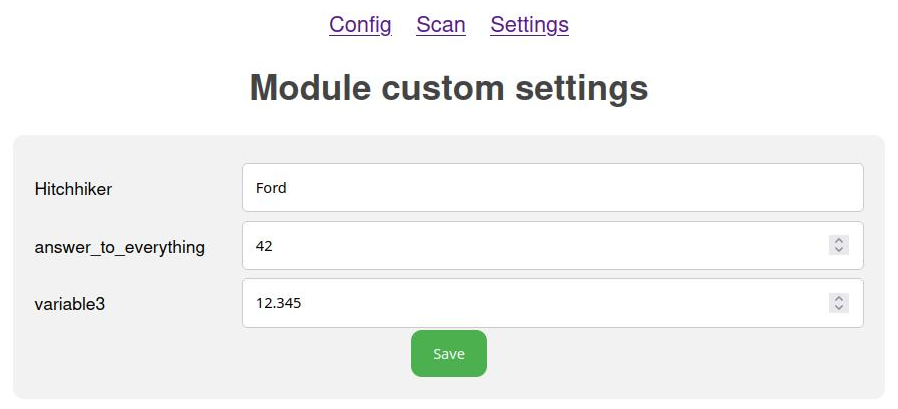
The Settings Page allows you to view and modify custom application variables defined in your project.
Features
- View variables: See all user-defined settings from
settings.json. - Modify values: Change values directly via the web interface. Changes persist after reboot.
- Add/remove fields: Edit the settings.json file directly, maintaining the
name:valuestructure, then rebuild and upload the filesystem.
Accessing Variables in Code
Use the following methods to retrieve variable values in your program:
// For text fields
std::string my_string = puara.getVarText("variable_name");

// For number fields (integers or floats)
int my_int = puara.getVarNumber("variable_name");
float my_float = puara.getVarNumber("variable_name");
settings.json
The /data/settings.json file stores custom application settings as an array of name-value pairs:
{
    "settings": [
        {
            "name": "user_defined_text",
            "value": "user defined value"
        },
        {
            "name": "user_defined_variable",
            "value": 42
        },
        {
            "name": "variable3",
            "value": 12.345
        }
    ]
}
Example: OSC Settings
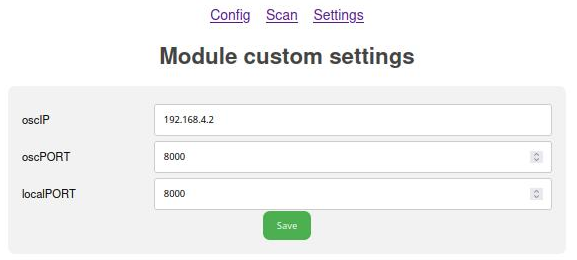
For projects using OSC communication, the settings page can be used to configure IP addresses and ports: